


Movify: AI Video Generator
0.00.00 Reviews
App Specs
- Version
- 1.0.1
- Updated On
- License
- Free
- Downloads
- 50,000+
- Developer
- botiix
- Categories
- Art & Design
- Platform
- Android
Screenshots
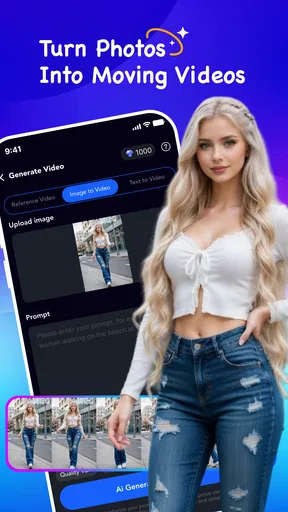
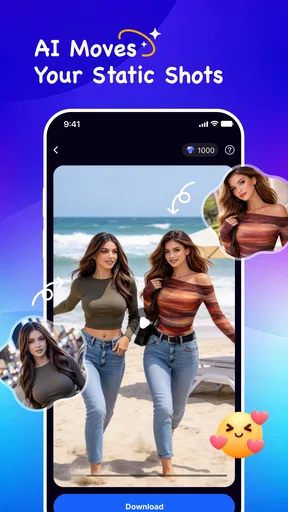
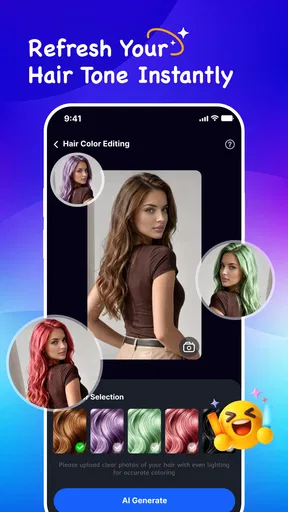
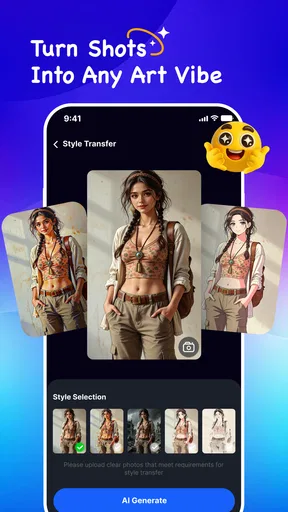
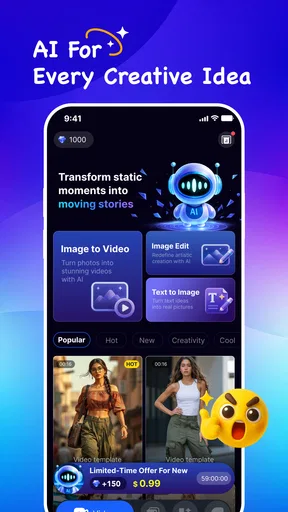
 Analysis by AppCompare
Movify: AI Video Generator is the kind of creative app I would reach for when a still image needs more life but I do not want to open a full desktop editor. Developed by botiix, it combines photo-to-video creation, image enhancement, and visual effects in a compact Art & Design app. My overall impression is clear: Movify is most useful as a fast idea generator, not as a complete replacement for a professional video editor.
That distinction matters. The app can help turn an ordinary picture into something more expressive, polish an image before sharing it, or add a creative treatment when a plain photo feels too static. It is aimed at people who value speed and experimentation over detailed manual control. If you want to build a polished social post, animate a family photograph, prepare a visual for a small project, or simply test what an AI effect can do, it has a sensible place in your toolkit.
I also found that its appeal depends heavily on how you approach AI tools. The best results come from starting with a strong, clear image and having a specific purpose in mind. If you expect every source photo to become a convincing cinematic clip, disappointment is likely. Movify is better understood as a creative assistant that gives you a starting point, with the final quality shaped by your source material and your willingness to try different treatments.
What stands out when using Movify
I find Movify most useful when I decide what I want an image to do before choosing an effect: add gentle movement, improve a weak-looking photo, or explore a more playful style. That small bit of planning helps me judge results by whether they serve the picture, not just whether they look dramatic. Next, I’d weigh how much control you need against the convenience of an AI-led workflow.
A practical path from photo to short visual
The central attraction is the photo-to-video workflow. Instead of beginning with a blank timeline, I can start with an image that already contains the subject, colors, and composition I want. That makes the app approachable for someone who has never edited video. The process feels less intimidating than arranging clips, trimming tracks, and managing layers in a conventional editor.
This is particularly helpful for casual storytelling. A travel photo can become a more engaging post, a product image can gain movement for a presentation, and a personal portrait can be given a more expressive treatment than a static upload. The result is not necessarily a finished campaign asset, but it can provide a visually interesting draft without demanding advanced editing knowledge.
One useful habit is to prepare the image before asking for motion. A sharply focused subject with enough space around it generally gives an AI tool more visual information to work with than a dark, crowded, or heavily compressed picture. I would also keep the original file untouched and work from a copy. That makes it easier to compare the enhanced version with the source and return to the starting point if an effect changes the image too aggressively.
Worth Reading Before You Choose

EA SPORTS FC Mobile 26 Is a Bigger Football Game, but It Takes Time

Flipboard Shows What News Apps Must Do Beyond the Feed

Switching to Android Auto Means Rethinking Your Driving Routine

Google Calendar Makes a Crowded Week Easier to Manage

Ludo King Makes the Most of the Minutes Between Plans

Baby Panda World Brings Quick Play to Modern Phones, but Its Game Library Feels Busy
Enhancement is more useful than it first appears
The image-enhancement side gives Movify value beyond animation. Not every user needs a dramatic effect; sometimes the real problem is that a picture looks dull, soft, or unsuitable for a new format. Improving an image before applying a creative treatment can produce a more coherent result than adding effects immediately.
For example, I would use the enhancement step on an older photo before turning it into a shareable visual. I would also consider it for a small business owner who has a decent product picture but no time to recreate the shot. The important trade-off is restraint. Enhancement should support the subject, not make skin, textures, or edges look unnaturally processed. When the source already has strong detail, a lighter touch is usually the safer choice.
A second practical workflow is to create two versions: one enhanced but relatively natural, and another with a stronger creative effect. Comparing them side by side makes it easier to choose the version that still looks like the original subject. This is a simple step, but it prevents the common mistake of accepting the most dramatic result merely because it is more noticeable.
Creative effects encourage experimentation
Movify is also designed for users who want to explore visual ideas without learning a complex effects package. Creative effects can be useful when the goal is mood rather than realism. A simple image can become more suitable for a themed post, a personal greeting, or a quick concept board.
I like this part of the experience most when I treat each result as a draft. AI-generated effects can introduce unexpected changes, and those surprises are not always flaws. They can reveal a direction I would not have considered manually. At the same time, an unusual result is not automatically a usable one. If the subject’s identity, shape, or important details change too much, the effect has stopped helping.
That makes selective use important. I would reserve stronger treatments for images where visual experimentation is the point, such as mood boards or playful social content. For a professional headshot, an important family image, or a product that must remain accurate, I would favor enhancement and subtle movement instead.
A realistic everyday scenario
Imagine I have taken a photo of a handmade item for a small online shop. The picture is usable but not especially lively, and I need a quick visual for a social post. I could begin with the cleanest version of the image, use enhancement carefully, and then test a restrained photo-to-video treatment. If the movement distracts from the item, I would return to the enhanced still rather than forcing the animation.
That workflow shows where Movify fits well. It can help one person create a more engaging asset without hiring an editor or learning a large desktop application. It does not remove the need for judgment: I still need to check whether the item remains recognizable, whether the composition works on a phone screen, and whether the effect supports the message.
Where it differs from ordinary alternatives
Compared with a traditional mobile video editor, Movify places less emphasis on manual construction and more on transforming a starting image. A conventional editor is usually the better choice when I need precise timing, multiple clips, detailed text placement, audio synchronization, or frame-by-frame corrections. Movify is more attractive when the starting point is one image and the desired result is a quick creative variation.
Compared with a standard photo editor, it offers a more direct route toward motion and AI-assisted visual changes. A photo editor may provide finer control over exposure, color, retouching, and layers, while Movify is more convenient for someone who wants to see an automated interpretation quickly. I would not choose it for meticulous color grading or detailed compositing, but I would choose it when speed matters more than pixel-level control.
The choice also depends on how much creative ownership you want. Manual tools reward patience and let you decide exactly what changes. Movify reduces that workload, but the trade-off is that the automated result may not follow your intention perfectly. In my view, that is not a deal-breaker; it simply means the app works best as part of a workflow rather than as the only tool.
The limitations I would consider first
The biggest weakness is the uncertainty that comes with AI-based transformation. A source image may be technically good and still produce a result that feels awkward, overly stylized, or inconsistent with the original. This is especially relevant when the image contains faces, hands, small text, intricate objects, or patterns that need to remain accurate. I would always inspect the output before sharing it.
There is also a creative limitation: automated effects can make several unrelated images feel similar if I rely on the same type of treatment repeatedly. Movify can speed up production, but speed can lead to visual sameness. To avoid that, I would vary the source images, keep some outputs natural, and use effects only when they add a clear purpose.
Another point is cost structure. The app itself is free, but in-app purchases range from $1.99 to $99.99 per item. That wide range means I would pay attention to what is available without spending and avoid assuming that every appealing option is included at no cost. Before committing to a larger purchase, I would test the free experience with several different images and decide whether the quality fits my actual needs.
The age classification is Mature 17+, so I would not treat Movify as an app for children or as an automatically suitable family creative tool. Parents and guardians should consider that rating before allowing younger users to install or use it. For adults, the rating is still a useful reminder to review the app’s creative output and use it thoughtfully when making content for public platforms.
Performance expectations and preparation tips
Movify requires Android 7.0 or later, which makes it accessible to a broad range of Android devices. Even so, compatibility does not guarantee that every phone will feel equally comfortable during AI-heavy tasks. I would close unnecessary apps, keep enough storage available for source files and results, and use a stable connection when a transformation takes time to process. These are sensible precautions for any app handling image generation or enhancement.
My strongest preparation tip is to begin with a small, purposeful test. Rather than processing a whole collection, I would select one portrait, one object photo, and one landscape. That quickly reveals how the app treats different subjects. If faces remain convincing but text becomes distorted, I would avoid using it for posters. If landscapes gain attractive movement while product edges become unreliable, I would keep it for mood-based content instead of catalog images.
I would also save the original and label each variation clearly. AI workflows can produce several visually similar files, and it is easy to forget which version was enhanced first or which effect created a particular result. Keeping a simple naming habit makes the app more useful for real projects and reduces the chance of publishing an unfinished experiment.
Who should use it, and who should skip it
Movify is a good match for casual creators, social media users, small business owners, students working on visual presentations, and anyone who wants to experiment with image-to-video ideas from a phone. It is especially appealing if the thought of a timeline editor feels excessive for a single visual. The free entry point also makes it reasonable to try before deciding whether its paid options fit your routine.
I would recommend it to a friend who often has good photos but struggles to turn them into engaging posts. The app can provide a bridge between still-image editing and short-form visual content. It is also useful for people who enjoy exploring variations and are comfortable choosing the best result rather than expecting the first attempt to be perfect.
I would skip it if I needed exact editing control, dependable preservation of tiny details, or a complete production environment with sophisticated audio and timeline tools. A professional editor, a detailed photo-editing app, or a desktop workflow would be better in those situations. I would also hesitate to use Movify as the sole tool for sensitive restoration work, official documents, or commercial images where accuracy matters more than visual novelty.
The app currently has over 10 thousand installs, which suggests an early but real audience rather than a long-established mainstream platform. Its current version is 1.0.1, so I would approach it as a relatively young product and keep expectations focused on its core creative purpose. That does not make it a poor choice; it simply reinforces the value of testing the workflow on your own device before building an important project around it.
My verdict after weighing the trade-offs
Movify: AI Video Generator succeeds because it lowers the effort needed to move from a photo to a more expressive visual. Its combination of enhancement, photo-to-video creation, and creative effects gives it a clear identity in the Art & Design category. I find it most convincing when I use it to explore ideas quickly, prepare informal social content, or give a single image a stronger sense of presentation.
Its weaknesses are equally important. AI output can be unpredictable, strong effects can reduce authenticity, and the purchase range means I would examine the available options carefully before spending. The app also cannot replace the precision of a traditional editor. Those limits do not cancel its value, but they define the right expectations.
For me, the best reason to install Movify is not the promise of effortless perfection. It is the chance to turn a familiar image into several creative possibilities with relatively little technical work. If you are happy to review results, keep the original files, and choose subtle treatments when accuracy matters, it can become a handy addition to your mobile creative workflow. If you need complete control from start to finish, I would choose a conventional editing tool instead.
Overall, I recommend giving it a careful trial for personal projects, quick promotional drafts, and visual experimentation. Use it as a fast creative partner, not as an unquestioned final editor, and its strengths become much easier to appreciate.
Pros
- Quickly turns text prompts into short videos.
- Useful for social media clips and creative experiments.
- AI tools reduce the need for advanced editing skills.
- Supports rapid idea testing with multiple generated variations.
- Can help create visuals without filming or expensive equipment.
Cons
- Output quality may vary between prompts and generation attempts.
- Advanced features or credits may require a paid subscription.
- Generated videos can contain visual glitches or odd details.
- Longer or highly specific scenes may be difficult to produce.
- Processing times may increase during busy periods.
FAQs for Movify: AI Video Generator
What is Movify: AI Video Generator used for?
Movify: AI Video Generator is designed to help users create short videos with artificial intelligence, usually from written prompts, images, or other supplied media. It can be useful for social media posts, creative experiments, promotional clips, and visual storytelling. Before downloading, remember that the exact tools and supported formats may vary by app version, device, and subscription plan.
Is Movify: AI Video Generator free to download and use?
The app may be available to download without an upfront charge, but free access does not necessarily include unlimited video generation. AI processing often depends on credits, usage limits, advertisements, watermarks, or premium subscriptions. Check the current pricing page and in-app purchase details before creating several videos, especially if you need high resolution, longer clips, faster generation, or access to all available styles.
Does Movify require an internet connection?
Yes, users should expect to need a stable internet connection for most important functions. AI video generation is commonly processed on remote servers rather than entirely on the phone, so prompts, images, and generation requests may be uploaded for processing. Results can take longer on weak networks, and offline use may be limited or unavailable. Avoid uploading private material unless you understand the app’s privacy terms.
What kind of videos can be created with Movify?
Movify can be used for different short-form creative projects, such as animated images, stylized scenes, social media content, concept visuals, and promotional ideas. The final result depends heavily on the prompt, source image, selected style, and available generation settings. AI output may occasionally contain visual mistakes, inconsistent details, or unexpected motion, so reviewing and editing each result is recommended before publishing.
Is Movify safe for personal images and generated content?
Before using personal photos, business assets, or confidential ideas, review Movify’s privacy policy, permissions, and content ownership terms. Pay attention to how uploaded files are stored, processed, and potentially used to improve services. You should also confirm whether generated videos can be used commercially and whether the app adds watermarks. Avoid uploading sensitive images or identifiable information unless you are comfortable with the stated practices.


